

Veda Audio Player
Add books from links: Google Drive, Dropbox, OneDrive, Yandex Disk
Paste a link, or share it from another app. Veda Audio Player checks the link and asks before it downloads anything.
FreeNo ads, no in-app purchases, no account and no tracking.
What it does
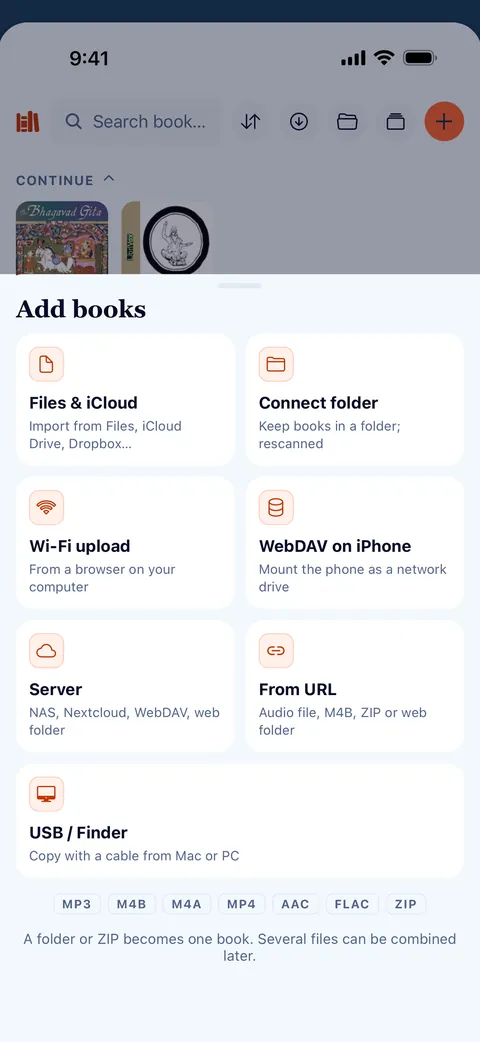
- Upload from your computer over Wi-Fi, or add a book from a link: an audio file, a ZIP, or a public Google Drive, Dropbox, OneDrive or Yandex Disk link.
- Import from Files, the share sheet or a ZIP, or connect a folder and Veda Audio Player picks up new books by itself.
Works with
- Google Drive
- Dropbox
- OneDrive
- Yandex Disk

Questions
Can I add a book from a link or Google Drive?
Yes. In the Library, tap + and choose From URL, or share the link to Veda Audio Player from another app. Direct links to an audio file, an M4B or a ZIP work, and so do web folders and public Google Drive, Dropbox, OneDrive and Yandex Disk links (shared as “Anyone with the link”). A Google Drive folder can’t open from a link: share it as a ZIP, or share the files one by one.
Other features
Search inside lectures
Remember a phrase but not which lecture?
Your own server
Keep the library at home and listen anywhere.
Formats
Play the audiobooks you already own, as they are.
Lecture player
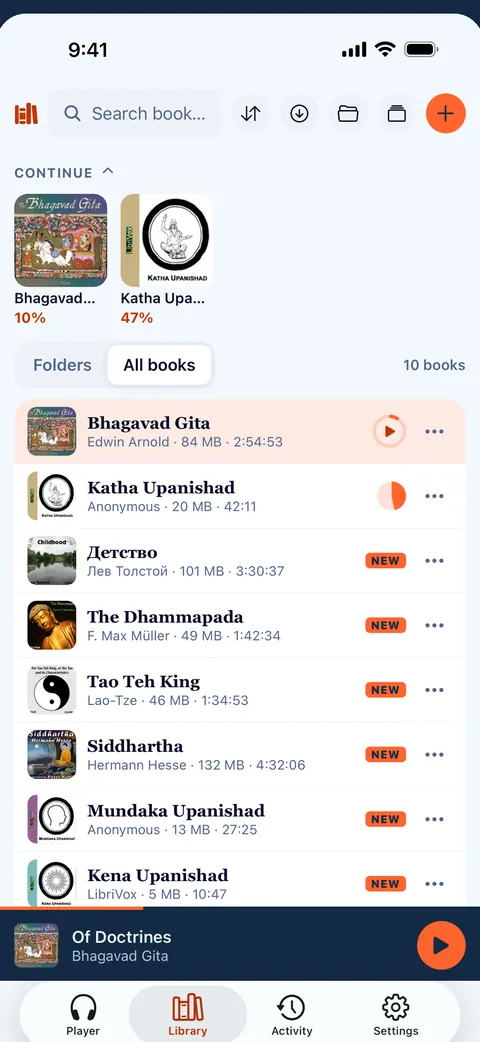
Keep recorded lessons together in Veda Audio Player: arrange course folders as shelves, resume each lecture and leave a note at a useful moment.
LibriVox audiobooks
LibriVox volunteers record books in the public domain.
Veda Audio Player – Audiobooks
Your own M4B, MP3 & FLAC files
FreeNo ads, no in-app purchases, no account and no tracking.